

The Design Principles Behind My Zed Config
Zed is fast, native, and endlessly configurable. Here's the thinking behind every section of my settings.json — from AI-first workflows to typography obsession to dual-theme ergonomics.
I've been a VSCode user for years. I even wrote about my setup — Operator Mono, sidebar on the right, the whole thing. But Zed has been pulling me in. It's native, it's genuinely fast in a way that Electron apps just aren't, and the configuration surface is surprisingly deep. Its also completely open - if you want a feature just hack away.
After a few months of daily driving it, my settings.json has grown into something intentional enough to document.
Here's what it looks like at the moment:
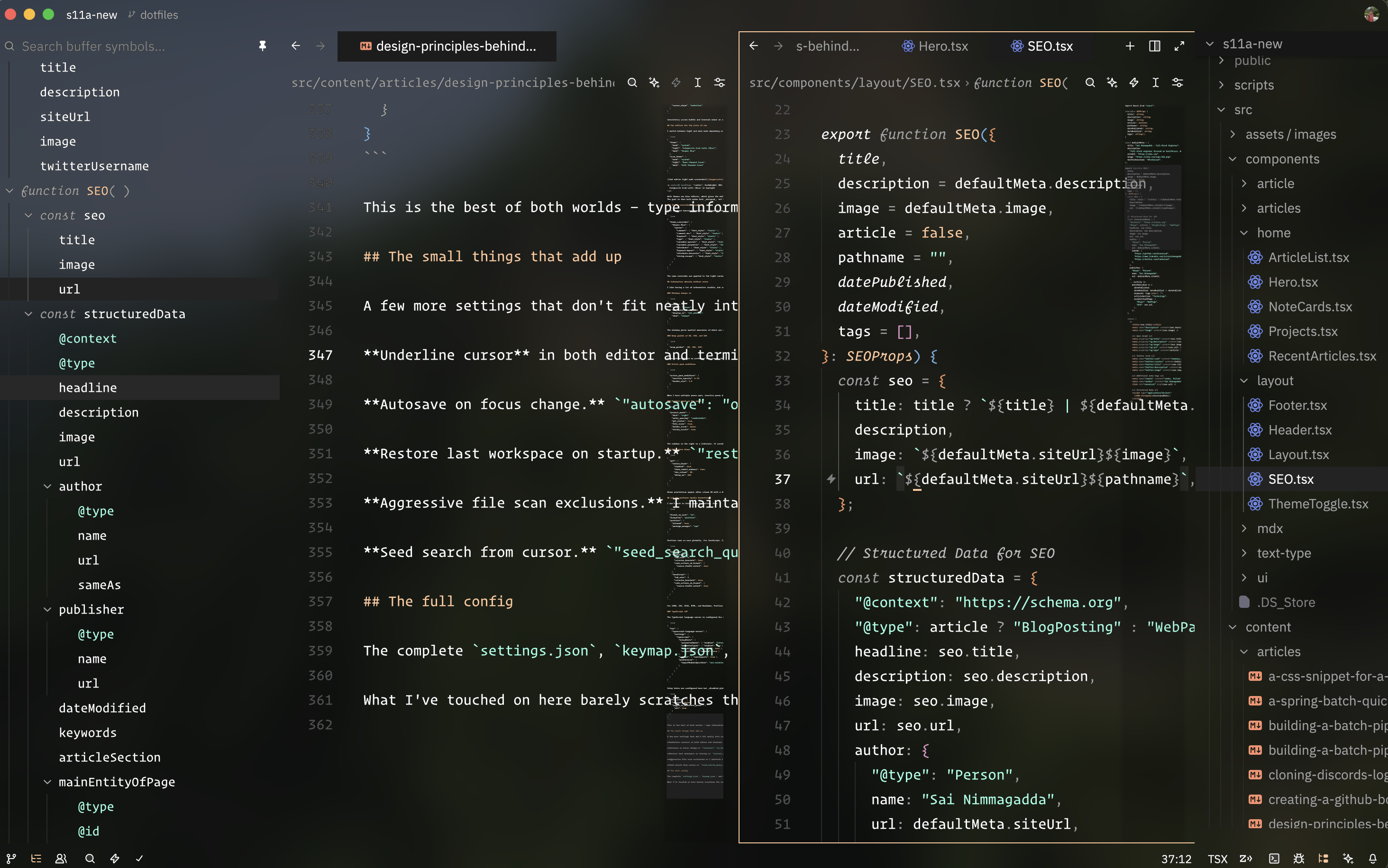
The full config lives in my dotfiles repo. Below I'm breaking down the why behind each section.
AI as a co-pilot
Zed's speed and native feel is the reason I switched. Admittedly I think other editors are ahead of Zed agent-wise, but the agent system turned out to be worth configuring properly. Claude Sonnet is the default model with thinking enabled:
{
  "agent": {
    "default_profile": "ask",
    "default_model": {
      "enable_thinking": true,
      "provider": "anthropic",
      "model": "claude-sonnet-4-6-thinking-latest"
    },
    "play_sound_when_agent_done": true,
    "tool_permissions": {
      "default": "allow"
    }
  }
}
A few decisions worth calling out:
- Thinking mode on by default. For the primary agent, I want reasoning. The tradeoff in latency is worth it for anything non-trivial.
- Sound on completion. I kick off agent tasks and context-switch. The chime brings me back when it's done — no polling the panel.
- Tool permissions: allow all. I'd rather review the agent's work than babysit every tool approval.
For the inline assistant (quick edits, completions in the buffer), I use a different model entirely:
{
  "inline_assistant_model": {
    "provider": "copilot_chat",
    "model": "gpt-5.4",
    "enable_thinking": false
  }
}
Thinking mode is off here. Inline edits need to be fast, not thorough. Different tools for different jobs.
I also keep a "Descriptive" profile that uses GPT for longer-form explanations where thinking isn't necessary. The idea is matching the model to the task shape rather than defaulting to one model for everything.
MCP Context Servers
Zed supports MCP context servers natively. No extensions required. I have Context7 for documentation lookups and a GitHub server for repository context:
{
  "context_servers": {
    "mcp-server-context7": {
      "enabled": true,
      "remote": false
    },
    "mcp-server-github": {
      "enabled": true,
      "remote": false
    }
  }
}
This means the agent can pull live docs and search GitHub without me leaving the editor.
Typography is interface design
If you stare at something 8+ hours a day, the font matters. Long live Operator Mono.
{
  "ui_font_family": ".ZedSans",
  "ui_font_size": 16.0,
  "ui_font_weight": 450,
  "buffer_font_family": "Operator Mono Lig",
  "buffer_font_size": 16.0,
  "buffer_font_weight": 400,
  "buffer_line_height": "comfortable"
}
The split between UI font and buffer font is intentional. Zed Sans was designed specifically for editor chrome — it's legible at small sizes for panels, tabs, and status bars. Operator Mono is where I want to spend my reading time, in the actual code buffer. The SSm Lig variant adds font ligatures using kiliman's project.
The "comfortable" line height gives breathing room between lines without feeling wasteful.Operator Mono's italics do the heavy lifting for visual distinction (more on that below).
The terminal gets its own font config too:
{
  "terminal": {
    "font_family": "Operator Mono Lig",
    "font_size": 16,
    "font_weight": 400,
    "cursor_shape": "underline"
  }
}
Consistency across buffer and terminal means no visual jarring when switching between the two.
Two editors for the price of one
I switch between light and dark mode depending on the time of day and environment. Zed makes this possible with system-aware theming:
{
  "theme": {
    "mode": "system",
    "light": "Catppuccin Iced Latte (Blur)",
    "dark": "Vesper Blur"
  },
  "icon_theme": {
    "mode": "system",
    "light": "Base Charmed Icons",
    "dark": "Soft Charmed Icons"
  }
}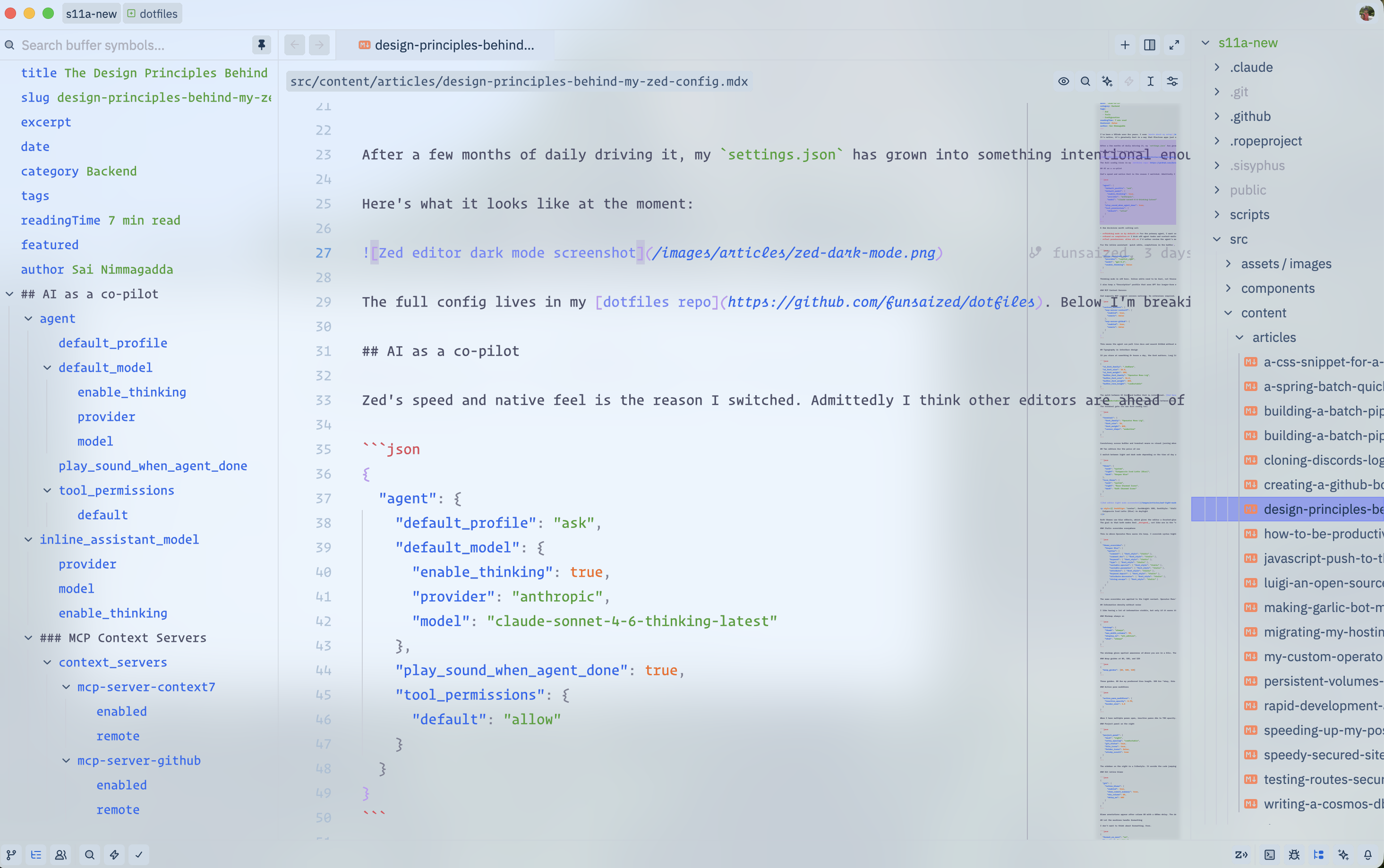
Catppuccin Iced Latte (Blur) in daylight
Both themes use blur effects, which gives the editor a frosted-glass look on macOS. Even the icon themes switch — Base Charmed for light, Soft Charmed for dark. The goal is that both modes feel designed, not like one is the "real" theme and the other is a fallback.
Italic overrides everywhere
This is where Operator Mono earns its keep. I override syntax highlighting on both themes to italicize comments, keywords, types, parameters, and decorators:
{
  "theme_overrides": {
    "Vesper Blur": {
      "syntax": {
        "comment": { "font_style": "italic" },
        "comment.doc": { "font_style": "italic" },
        "keyword": { "font_style": "italic" },
        "type": { "font_style": "italic" },
        "variable.special": { "font_style": "italic" },
        "variable.parameter": { "font_style": "italic" },
        "attribute": { "font_style": "italic" },
        "keyword.import": { "font_style": "italic" },
        "attribute.decorator": { "font_style": "italic" },
        "string.escape": { "font_style": "italic" }
      }
    }
  }
}
The same overrides are applied to the light variant. Operator Mono's cursive italics make import, const, return, and type annotations visually distinct without needing color alone. It's subtle but it changes how you scan code.
Information density without noise
I like having a lot of information visible, but only if it earns its screen real estate.
Minimap always on
{
  "minimap": {
    "thumb": "always",
    "max_width_columns": 90,
    "display_in": "all_editors",
    "show": "always"
  }
}
The minimap gives spatial awareness of where you are in a file. The 90-column max width keeps it slim.
Wrap guides at 80, 100, and 120
{
  "wrap_guides": [80, 100, 120]
}
Three guides. 80 for my preferred line length. 100 for "okay, this is getting long." 120 for "definitely break this up." It's a gradient, not a wall.
Active pane modifiers
{
  "active_pane_modifiers": {
    "inactive_opacity": 0.75,
    "border_size": 1.0
  }
}
When I have multiple panes open, inactive panes dim to 75% opacity. This is one of those features that sounds minor until you try it — it makes the active pane pop.
Project panel on the right
{
  "project_panel": {
    "dock": "right",
    "entry_spacing": "comfortable",
    "git_status": true,
    "file_icons": true,
    "folder_icons": false,
    "sticky_scroll": true
  }
}
The sidebar on the right is a lifestyle. It avoids the code jumping left when you toggle the panel. File icons on, folder icons off. Comfortable spacing because cramped trees are hard to scan.
Git inline blame
{
  "git": {
    "inline_blame": {
      "enabled": true,
      "show_commit_summary": true,
      "min_column": 80,
      "delay_ms": 600
    }
  }
}
Blame annotations appear after column 80 with a 600ms delay. The delay is important as it keeps the blame from flickering as you navigate. Showing commit summaries inline means I can read why a line was changed without leaving the buffer.
Let the machines handle formatting
I don't want to think about formatting. Ever.
{
  "format_on_save": "on",
  "formatter": "prettier",
  "prettier": {
    "allowed": true,
    "package_manager": "npm"
  }
}
Prettier runs on save globally. For JavaScript, TypeScript, and TSX, I also run ESLint auto-fix on format:
{
  "languages": {
    "TypeScript": {
      "tab_size": 2,
      "colorize_brackets": true,
      "code_actions_on_format": {
        "source.fixAll.eslint": true
      }
    },
    "JavaScript": {
      "tab_size": 2,
      "colorize_brackets": true,
      "code_actions_on_format": {
        "source.fixAll.eslint": true
      }
    }
  }
}
For JSON, CSS, SCSS, HTML, and Markdown, Prettier is configured as an external formatter since these don't need ESLint. The per-language tab_size: 2 override is importat, as the JS/TS ecosystem has standardized on 2.
TypeScript LSP
The TypeScript language server is configured for maximum intelligence without visual clutter:
{
  "lsp": {
    "typescript-language-server": {
      "settings": {
        "typescript": {
          "inlayHints": {
            "parameterNames": { "enabled": "literals" },
            "parameterTypes": { "enabled": true },
            "variableTypes": { "enabled": true },
            "returnTypes": { "enabled": true }
          },
          "suggest": { "autoImports": true },
          "preferences": {
            "importModuleSpecifier": "non-relative"
          }
        }
      }
    }
  }
}
Inlay hints are configured here but disabled globally in the editor settings. I toggle them on with Alt when I need them:
{
  "inlay_hints": {
    "enabled": false,
    "toggle_on_modifiers_press": {
      "alt": true
    }
  }
}
This is the best of both worlds — type information is there when you want it, invisible when you don't. Hold Alt to peek, release to clear.
The small things that add up
A few more settings that don't fit neatly into categories but matter to me:
Underline cursor in both editor and terminal. "cursor_shape": "underline" takes up less vertical space than a block cursor and is easier to track than a thin line.
Autosave on focus change. "autosave": "on_focus_change" means I never think about saving. Switch to the terminal, switch to a browser — the file is saved.
Restore last workspace on startup. "restore_on_startup": "last_workspace" picks up right where I left off.
Aggressive file scan exclusions. I maintain a comprehensive list of directories to skip — node_modules, dist, build, .next, .cache, coverage directories, lock files, source maps, and more. This keeps the file finder fast and the project panel clean.
Seed search from cursor. "seed_search_query_from_cursor": "always" pre-fills the search bar with whatever's under my cursor. Small time saver that adds up across hundreds of searches a day.
The full config
The complete settings.json, keymap.json, and custom themes live in my dotfiles repo. If you're setting up Zed for the first time, I'd encourage you to start from the defaults and pull in sections that match how you work. Editor configuration is personal. These choices reflect my workflow, not prescriptions.
What I've touched on here barely scratches the surface of what Zed makes configurable. The official docs cover everything from custom snippets to task runners to remote development.